Add New Order


To add an order, choose a customer from the list  on the left side of the screen. You should see the customer information displayed in the customer summary section
 . After clicking the Add button at the top (as shown with the red arrow), another order will be added to the order list and the order detail section
  will be ready to enter new information. Products can be added to an order by selecting the products from the product selection tree
  to the right of the order form.
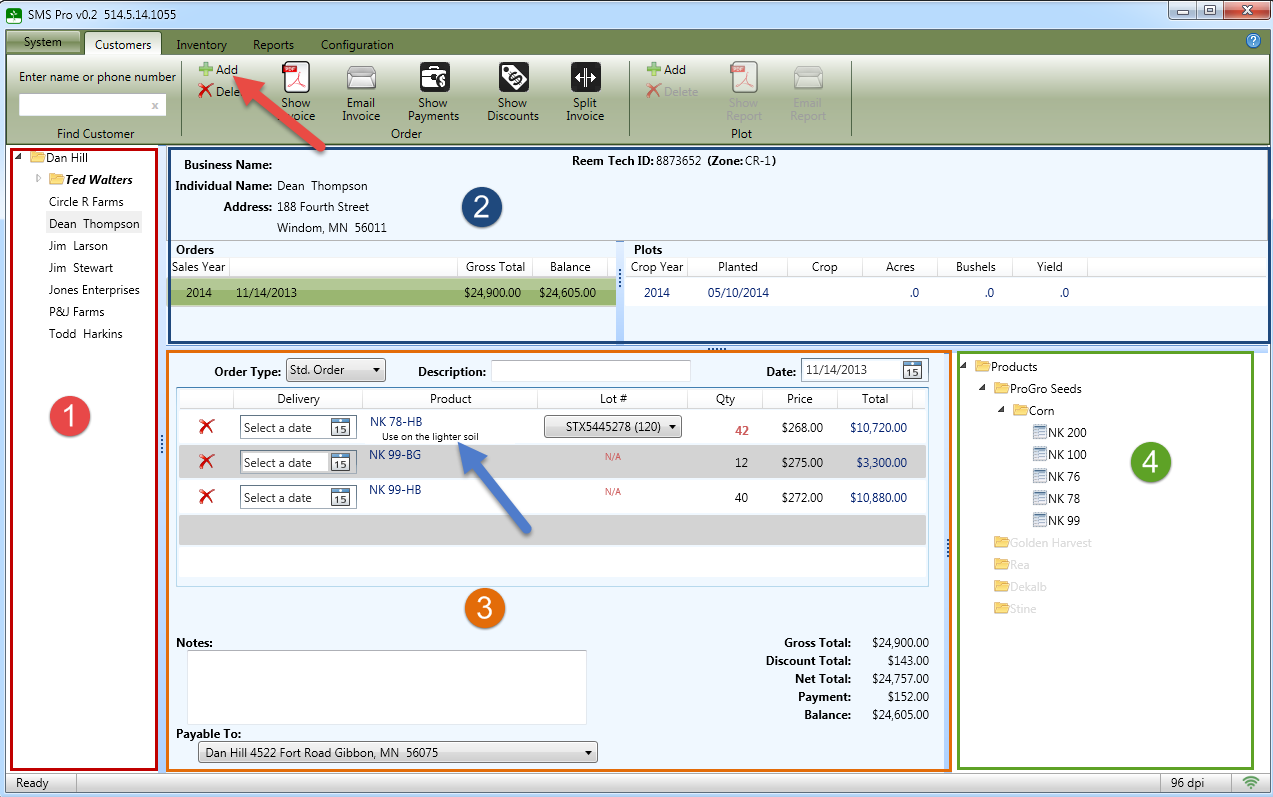
The order detail section has the following fields:
At the bottom of the order there are fields for Order Notes and a Payable To which is displayed at the bottom of the invoice when printed.
To remove a product from an order, press the delete button at the beginning of the order line item. The order totals and balance will recalculate. If you applied any incentive discounts based on the units for this product, you will need to adjust the quantity on the discount screen.