Managing your customer listing


The customers are listed below the dealer's name as shown here.
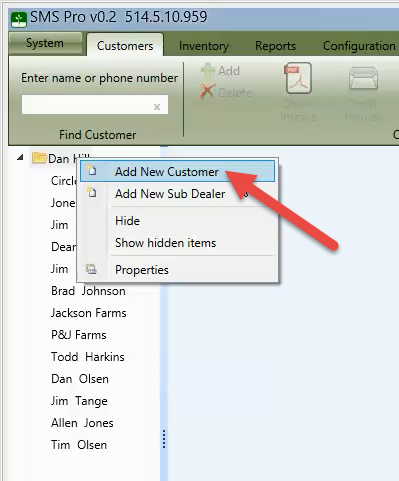
By right clicking on the dealer and selecting Add New Customer, the customer properties window is displayed.
In order to create a new customer a first name1 and last name2 OR business name3 is required.
After entering the customer information, the customer can be saved by clicking the OK button at the bottom of the properties window.
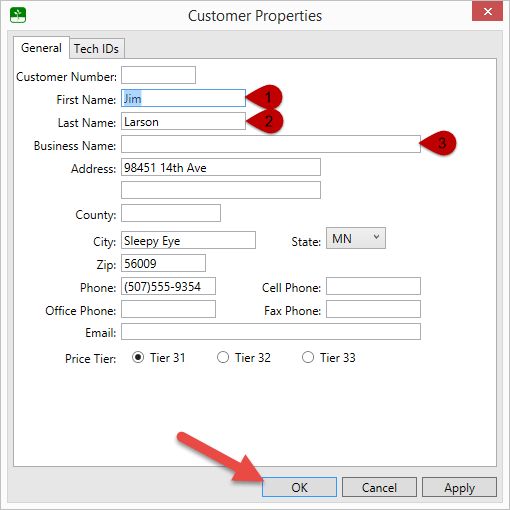
To edit an existing customer, right click on the customer and select Properties.
After changing the customer information, the customer can be saved by clicking the OK button.
The order that the customers are listed can be changed by
Customers can not be deleted, but they can be hid. To hide a customer, right click on the customer's name, and select Hide.
To show hidden customers, right click anywhere on the tree and select Show Hidden Items.
To show a hidden customer, right click on the customer's name and select Show.
Important Note: The hidden customer names are displayed with gray text.